

Smartphone users often face two common problems: fast battery drain on Android phones and storage issues on iPhones. Both problems can reduce performance and negatively affect daily usage.
The good news is that with a few simple adjustments, you can extend battery life on Android devices and free up valuable storage space on iPhones without deleting important data.
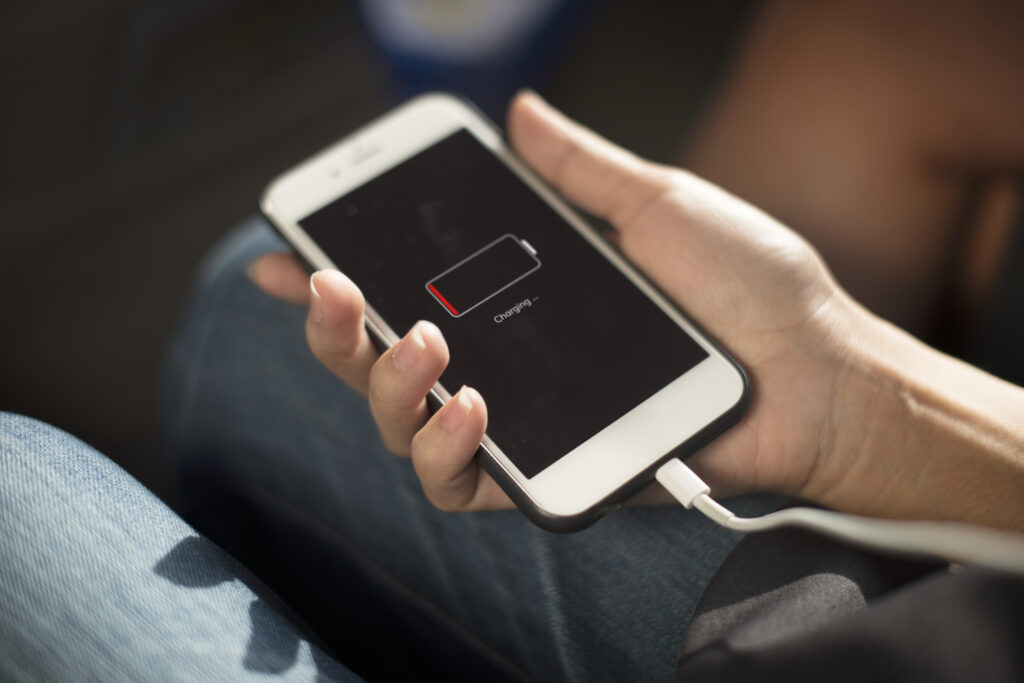
Why Android Battery Drains Quickly
Android battery drain usually happens due to:
- Background apps running continuously
- High screen brightness and refresh rates
- Location services always enabled
- Outdated apps or system software
Understanding these factors helps improve battery efficiency.
Step 1: Enable Battery Optimization on Android
Android includes built-in battery management tools.
- Go to Settings → Battery
- Enable Battery Saver or Adaptive Battery
- Restrict apps that consume power in the background
This can significantly extend battery life throughout the day.
Step 2: Reduce Screen and Network Usage
Your screen consumes the most power.
- Lower screen brightness or enable Adaptive Brightness
- Reduce screen timeout duration
- Turn off Bluetooth, GPS, and Wi-Fi when not in use
These small changes can add hours to battery life.
Step 3: Update Android Apps and System
Outdated apps may not be optimized.
- Update apps from the Google Play Store
- Install the latest Android system updates
Updates often include performance and battery improvements.
Why iPhones Run Out of Storage Quickly ?
iPhone storage fills up mainly due to:
- Large apps and games
- Photos and videos stored locally
- App cache and system data
Apple provides tools to manage storage efficiently.

Step 4: Enable Storage Optimization on iPhone
Apple’s storage management tools help save space.
- Go to Settings → General → iPhone Storage
- Enable Offload Unused Apps
- Review large apps and delete unnecessary ones
This frees storage without losing important data.
Step 5: Optimize Photos and Videos
Photos and videos take the most space.
- Enable iCloud Photos
- Turn on Optimize iPhone Storage
This stores full-resolution files in iCloud while keeping smaller versions on your device.
Step 6: Clear App Cache and Messages
Some apps store unnecessary data.
- Delete old WhatsApp or Messenger media
- Remove old message attachments
- Reinstall heavy apps if needed
Final Thoughts
Improving Android battery life and freeing iPhone storage doesn’t require advanced technical skills. By managing background activity, optimizing settings, and using built-in tools, you can enjoy smoother performance and longer usage time on your smartphone.