
A slow laptop can seriously affect productivity, whether you’re using Windows or macOS. Over time, unnecessary apps, background processes, and storage clutter can make even powerful laptops feel unresponsive.
Fortunately, you don’t need to replace your laptop immediately. With a few simple optimizations, you can restore speed and improve overall performance.
Common Reasons Laptops Become Slow
Laptops often slow down due to:
- Too many startup programs
- Limited free storage
- Outdated operating systems
- Background apps consuming RAM
- Aging hardware or battery issues
Identifying these issues helps you fix the root cause.
Step 1: Disable Unnecessary Startup Programs
Startup apps slow down boot time and system performance.
On Windows:
- Press Ctrl + Shift + Esc
- Open Startup Apps
- Disable apps you don’t need at startup
On macOS:
- Go to System Settings → General → Login Items
- Remove unnecessary apps
Step 2: Free Up Disk Space
Low storage affects speed on both systems.
Windows:
- Settings → System → Storage
- Enable Storage Sense
- Uninstall unused programs
macOS:
- System Settings → General → Storage
- Delete large files and old downloads
- Empty the Trash
Aim to keep at least 20% free storage.
Step 3: Update Your Operating System
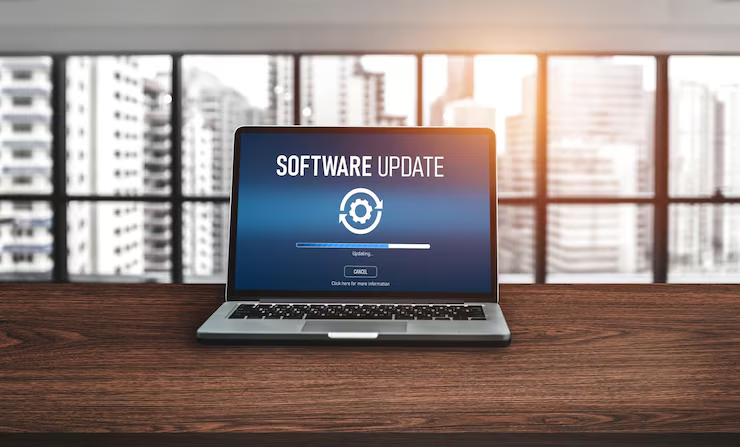
Updates often include performance improvements.
- Windows: Settings → Windows Update
- macOS: System Settings → Software Update
Running outdated software can cause lag and security risks.
Step 4: Reduce Background Applications
Too many background apps consume RAM and CPU.
- Close apps you’re not actively using
- Use Task Manager (Windows) or Activity Monitor (Mac) to identify resource-heavy apps
Step 5: Adjust Visual Effects
Visual effects look good but reduce performance.
Windows:
- Search Performance Options
- Select Adjust for best performance
macOS:
- System Settings → Accessibility → Display
- Enable Reduce Motion
Step 6: Consider Hardware Upgrades
If your laptop is still slow:
- Upgrade to an SSD
- Increase RAM (if supported)
These upgrades can dramatically improve performance.
Final Thoughts
A slow laptop doesn’t always need replacement. Regular maintenance, software updates, and simple system tweaks can significantly boost performance on both Windows and macOS laptops.